
Create and assign custom roles
Create a custom role, optionally duplicate an available role, and assign the result to a member.
Open Team, then Roles, to create a custom role when Add role is available. After creating it, assign it from Members or select it when sending an invitation.
Create a custom role
-
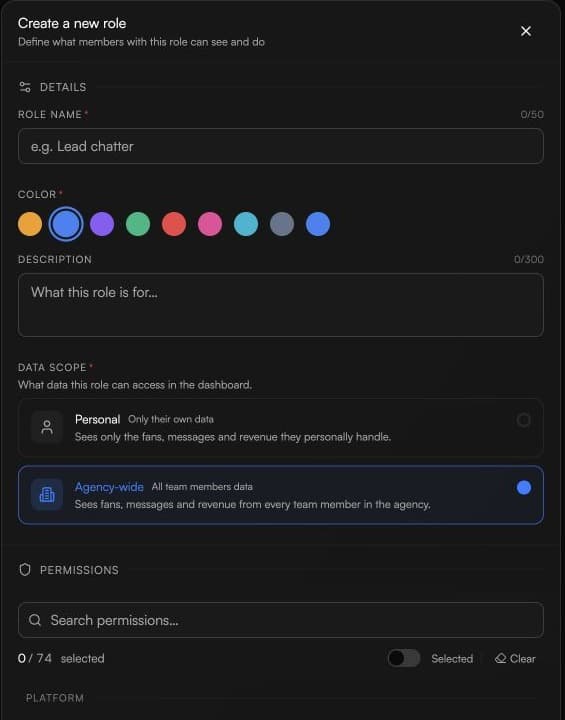
Open Team, then Roles. If Add role is available, choose it to open Create a new role.
-
Enter a unique role name, choose a color, and optionally add a short description.
-
Under Data scope, choose Personal or Agency-wide based on how broadly the role should see team data.
-
Select at least one readable action choice for the role, then choose Create role.
Start from an existing role
When Duplicate is available on a role you are allowed to manage, use it to start a copy. Rename the copy, review its data scope and action choices, then create it.
Assign the role
-
For an existing member, open Members and choose the new role in that member's role control when it is available.
-
For a new member, select the available role while sending the invitation.
If Add role, Duplicate, or assignment controls are unavailable, ask the workspace owner to review your access.