
Ein Skript korrigieren, das als Invalid for AI markiert ist
Prüfen Sie AI mode, Nachrichtenvorlagen, angehängte Medien, den Preis und den Enabled-Status, wenn ein Skript als Invalid for AI markiert ist.
Ein Skript kann erst dann für die KI aktiv sein, wenn es alle Eignungsanforderungen erfüllt. Wenn Invalid angezeigt wird, prüfen Sie die folgenden Punkte für den ausgewählten Creator.
Anforderungen prüfen
-
Aktivieren Sie AI mode für das Skript.
-
Fügen Sie mindestens eine Nachrichtenvorlage hinzu.
-
Fügen Sie einer Nachrichtenvorlage mindestens ein Medium hinzu. Ein Skript mit Vorlagen, aber ohne Medien ist weiterhin Invalid for AI.
-
Sorgen Sie dafür, dass der Gesamtpreis des Skripts den für diesen Creator angezeigten Mindestwert erreicht.
-
Stellen Sie das Skript auf Enabled.
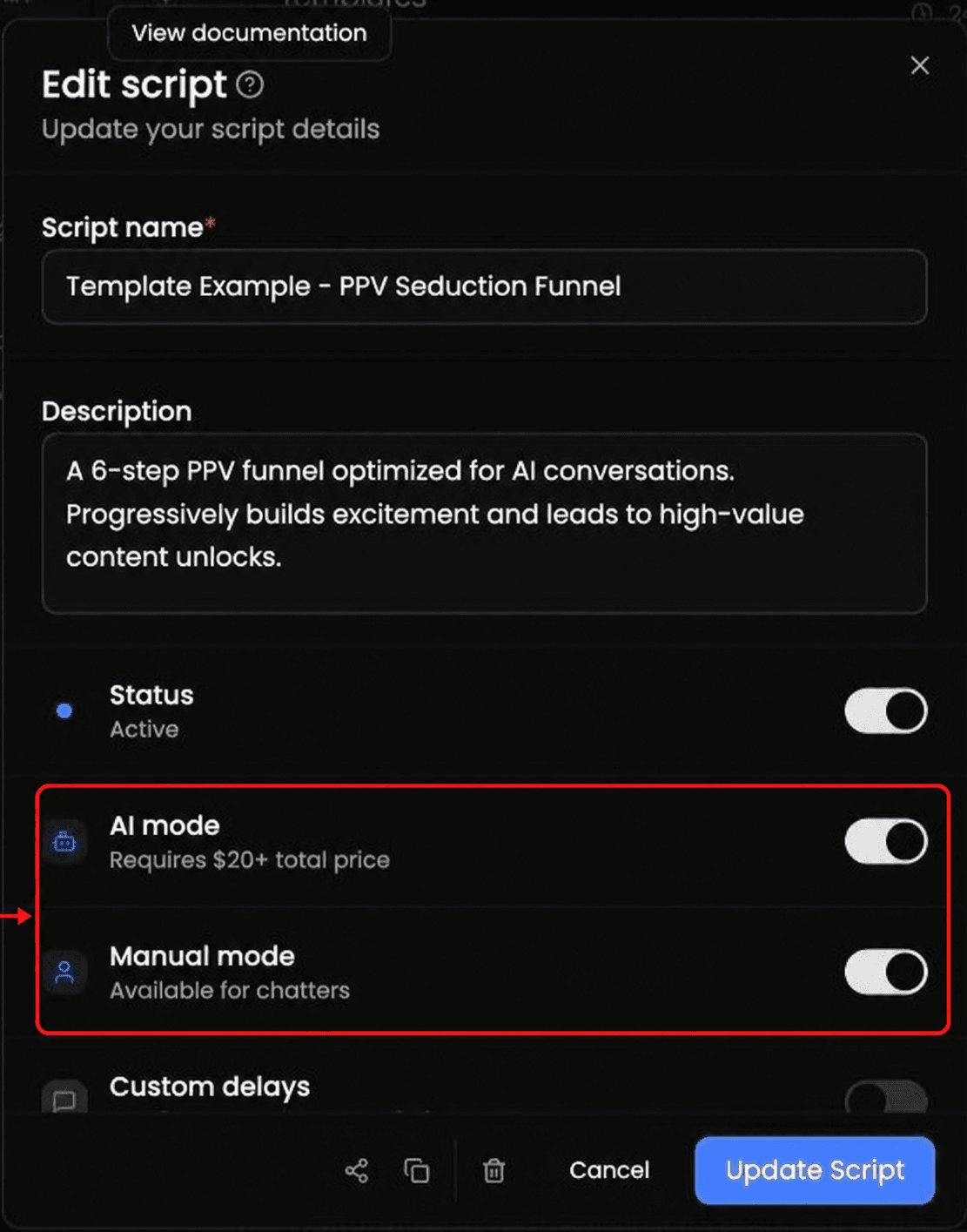
Der in einem Beispiel angezeigte Mindestwert muss nicht für jeden Creator gelten. Richten Sie sich nach dem Mindestwert, der für den Creator angezeigt wird, den Sie bearbeiten.
Wenn weiterhin Invalid angezeigt wird
Vergleichen Sie den Gesamtbetrag des Skripts mit dem für diesen Creator angezeigten Mindestwert, und prüfen Sie dann die Nachrichtenvorlage, die angehängten Medien, AI mode und die Enabled-Anforderungen erneut. Wenn die Warnung No media in this AI script anzeigt, hängen Sie Medien an mindestens eine Vorlage an.
Benutzerdefinierte Verzögerungen steuern das Timing. Sie sind getrennt von AI mode und Manual mode.