
Connect your Telegram account to Substy
Create your own bot, authorize it in Telegram Chat Automation, and confirm the correct account in Substy.
Connect your own bot, authorize it from the Telegram account you want to manage, then confirm that account in Substy. Pasting a bot token alone does not connect your personal account.
This is different from connecting Telegram notifications to receive Substy alerts.
The screenshots and interface labels in this guide are in English. Labels may differ if you use Telegram in another language.
Before you begin
- Use the Telegram account you want to connect and a dedicated bot that you own.
- You need permission to manage creators in your Substy agency. Access to an existing connected creator also depends on your assignment.
- Keep your bot token private. Do not send it to a fan, include it in a screenshot, or paste it into support chat.
1. Create and verify your bot
- Open the official @BotFather in Telegram and create your own bot.
- In that bot’s settings, enable Secretary Mode. This is not Telegram Secret Chat mode.
- Copy the bot’s secret token.
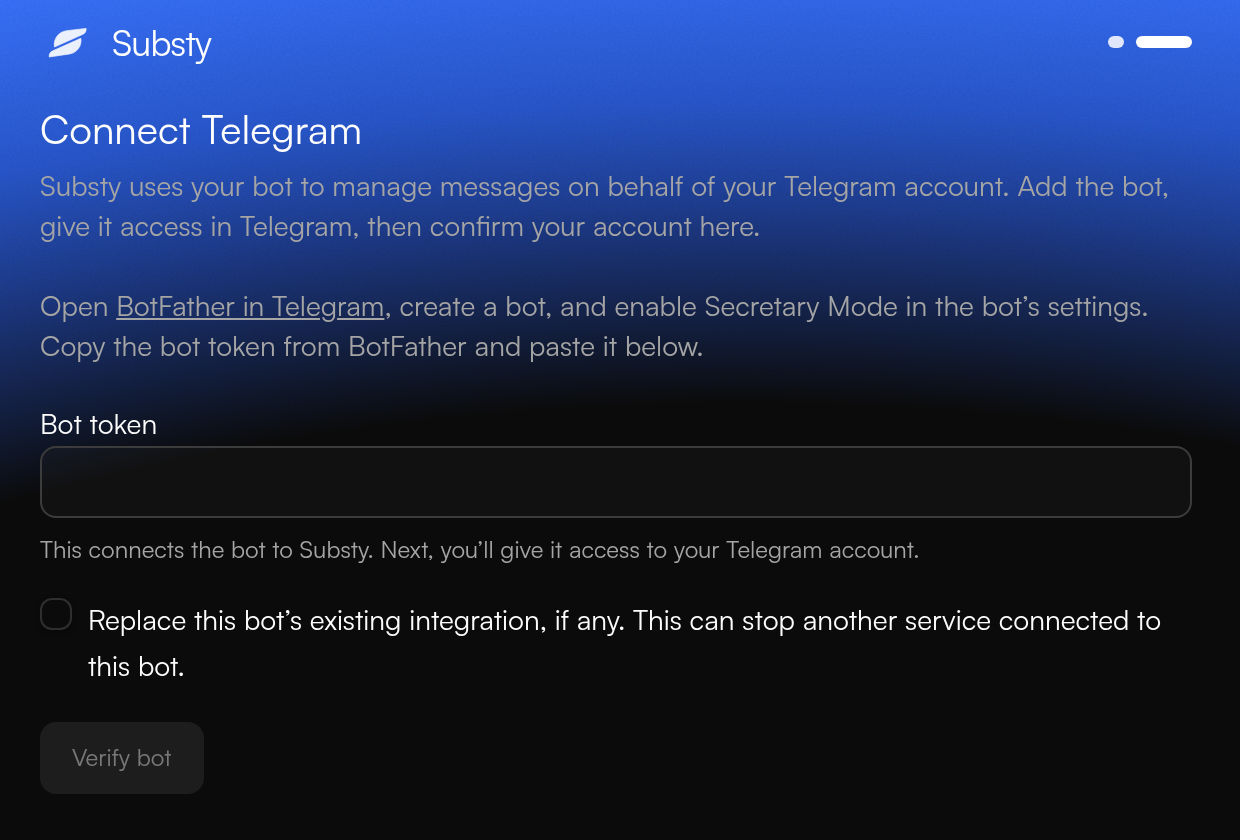
- In Substy’s creator setup, select Telegram. Paste the token into Bot token.
- Leave Replace this bot’s existing integration, if any unchecked unless you intend to replace another service. Replacing an existing integration can stop that service from working with your bot. Then select Verify bot.
2. Authorize the bot in Telegram
- Switch to the Telegram account you want Substy to manage.
- Open Profile → Edit → Chat Automation.

- In Bot Username or Link, enter your own bot’s @username or t.me link, then select the bot. Use the bot belonging to the token you entered in Substy, not another person’s bot.

- Select All Private Chats Except… and exclude unrelated private chats or any conversations you do not want the bot to access. Review the exclusions before continuing: this option shares private chats except those you exclude.
- Under Manage Messages, allow the bot to send replies.
- Select Done at the top of the screen to save the configuration.
3. Confirm the correct account in Substy
- Return to Substy. Your Telegram account appears under Confirm the Telegram account to connect. If it has not appeared, select Check connection.
- Check the displayed name, username (if present) and Telegram ID against the account you intend to connect.
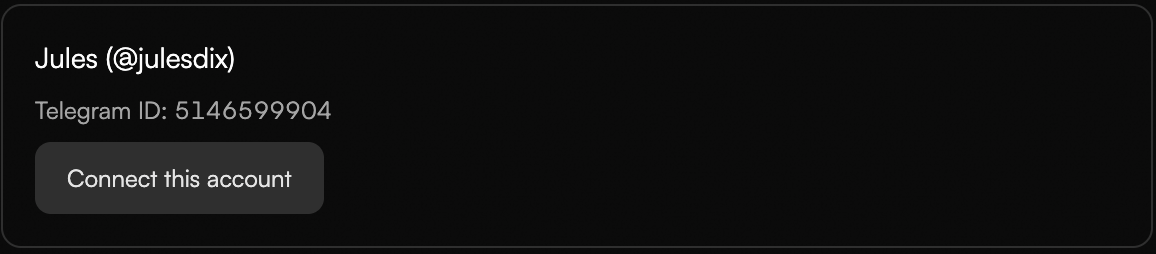
- Select Connect this account. If a confirmation dialog appears, check the account details again, then select Confirm account.
- If shown, select Continue to finish setup.
An active connection does not mean every conversation is open for replies. Telegram permissions and the reply window still apply.
If setup does not finish
- Waiting for Telegram setup: check that you added the same bot to the correct Telegram account and selected Done after configuring chat access. Then select Check connection in Substy.
- Account cannot be selected: enable the bot in Telegram’s connection settings and allow it to send replies under Manage Messages, then select Check connection in Substy.
- Token rejected: paste the complete current token from BotFather. Do not substitute the bot’s username for its token.
- Another integration already uses this bot: use a dedicated bot or explicitly decide whether replacing the existing integration is acceptable.
- Wrong account shown: do not confirm it. Return to Telegram and check which account authorized the bot.