
Set AI mode for multiple creators
Select creators, choose how their AI mode should change, and review the bulk-action results.
Use the Management table to apply one AI-mode action to several accessible creators.
Set the AI mode
-
Go to Creators > Management.
-
Select creators on the current page. If the selection banner offers Select all creators, use it only when you intend to include every accessible creator. It is not limited to the current page or current filters.
-
Choose Set AI mode.
-
Check the compatible count before continuing. Pending accounts and accounts that require 2FA are skipped.
Choose what changes
-
Disable AI: turns AI off while keeping each creator's saved mode and rules.
-
Enable AI: turns AI on while keeping each creator's saved mode and rules.
-
Full AI: replaces the saved mode with Full AI.
-
Hybrid Mode: replaces the saved mode with Hybrid Mode. Hybrid Mode is Elite-only.
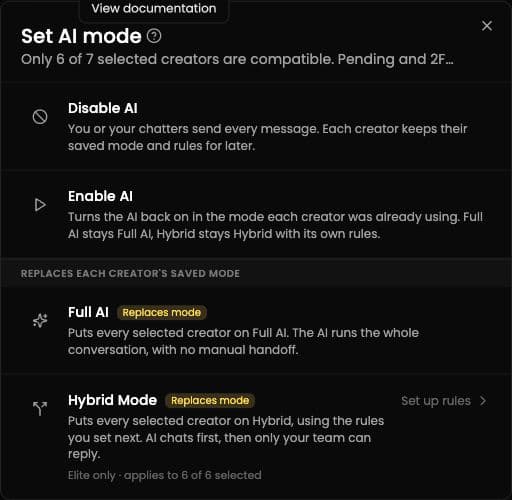
The counts shown are examples. Check the compatible count in your dialog before confirming.
Review the result
For Hybrid Mode, check the eligible count before confirming. A creator who cannot use Hybrid Mode is not changed and may appear in the failed count. After the action finishes, review the updated, skipped, and failed counts.