
Compléter les informations du créateur pour AI Chatter
Complétez et enregistrez les détails du créateur requis avant de pouvoir activer AI Chatter.
Utilisez Creator Information pour gérer les détails du profil du créateur sélectionné pour AI Chatter. Le Name suffit pour enregistrer le formulaire, mais activer l’IA nécessite quelques champs supplémentaires.
Accès et modification
Les utilisateurs disposant de l’accès aux paramètres d’IA peuvent consulter Creator Information. L’accès à la gestion des créateurs est requis pour la modifier et l’enregistrer.
Compléter les Creator Information
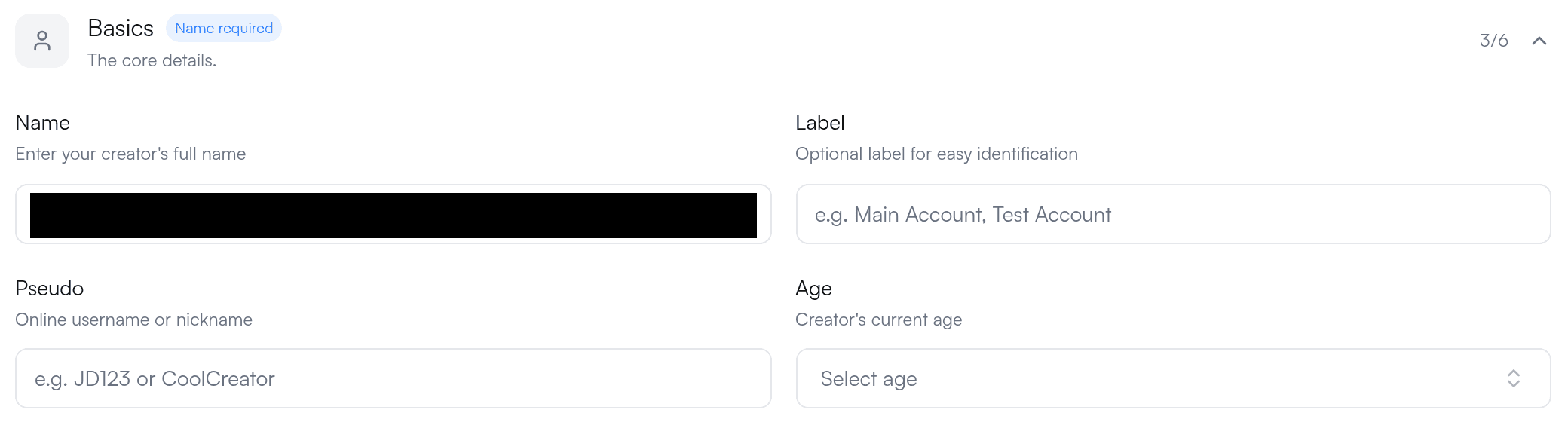
-
Ouvrez AI → Creator Info et sélectionnez le créateur que vous voulez mettre à jour.
-
Dans Basics, saisissez Name. C’est le seul champ obligatoire pour enregistrer le formulaire.
-
Développez Background. Avant d’activer AI Chatter, complétez aussi Place of Living, Timezone et Native Language. Age et Birthday ne sont pas requis par ce contrôle d’activation de l’IA.
-
Ajoutez des détails facultatifs tels que background, appearance, d’autres langues et interests lorsqu’ils sont utiles au profil du créateur.
-
Sélectionnez Save.
Choisir les langues de réponse
Définissez Native Language sur la langue qu’AI Chatter doit utiliser par défaut. Ajoutez jusqu’à cinq langues de réponse supplémentaires prises en charge sous Other Languages. Si un fan écrit dans une langue listée, AI Chatter peut répondre dans cette langue. Si la langue n’est pas listée, AI Chatter répond dans la Native Language.
Utiliser Lives near the fan
Dans Background, activez Lives near the fan lorsque AI Chatter doit présenter le créateur comme vivant près du fan au lieu d’utiliser le Place of Living enregistré. Laissez-le désactivé lorsque l’IA doit utiliser l’emplacement enregistré du créateur.
Si AI Chatter ne peut toujours pas être activé
Ouvrez AI → AI Chatter. Lorsque des détails de profil requis manquent, AI Core Settings liste les champs manquants et fournit un lien Complete Profile. Compléter le profil ne résout pas les autres exigences d’activation, comme la connexion du compte, les fonds disponibles ou un contenu éligible.
Si le formulaire est visible mais que la modification est indisponible, demandez à un owner de l’espace de travail de vérifier votre accès à la gestion des créateurs.