
Configurer et réutiliser des scripts
Choisissez la disponibilité, la priorité et les plannings des scripts, ainsi que des options de copie sûres.
Sélectionnez un créateur, puis ouvrez CRM > Scripts pour contrôler quand un script est disponible et en faire une copie réutilisable. La modification, l’ordre et l’import de scripts exigent l’accès attribué correspondant.
Choisir les réglages du script
-
Sélectionnez le créateur sur lequel vous voulez travailler.
-
Ouvrez CRM > Scripts et trouvez le script. La recherche vérifie son nom et sa description, et les filtres disponibles peuvent inclure All, AI, Manual, Scheduled et Invalid.
-
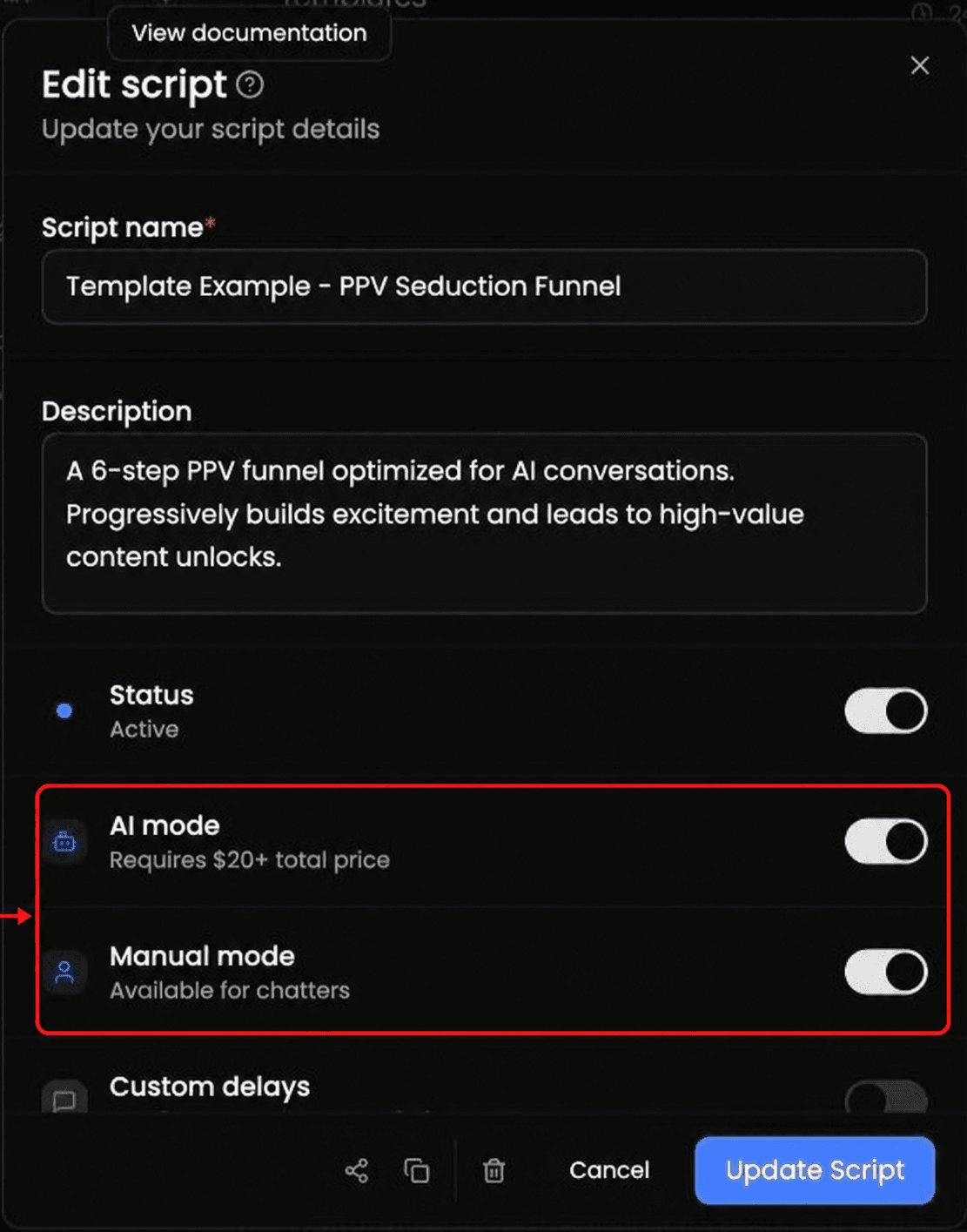
Ouvrez Edit script et utilisez Status pour rendre le script actif ou inactif.
AI mode rend le script disponible pour l’IA, et Manual mode le rend disponible pour les chatters. Vous pouvez activer l’un ou l’autre, ou les deux. Custom delays contrôle le moment et ne constitue pas un troisième mode de script.
-
Custom delays vous permet de configurer le moment pour chaque modèle.
-
Schedule vous permet d’enregistrer une plage horaire ou de choisir 24/7. Ne comptez pas sur ce réglage comme restriction horaire garantie pour les envois de scripts par AI Chatter.
-
Utilisez Linked lists pour limiter le script aux fans des listes sélectionnées lorsque la plateforme du créateur prend en charge les listes.
Vérifier l’aptitude et la priorité
Si un script est affiché comme Invalid for AI, suivez les consignes d’aptitude affichées pour ce créateur. Vérifiez que le script est activé, qu’il possède au moins un modèle de message avec un média joint, que AI mode est activé et qu’il atteint le prix total minimal affiché dans l’interface.
Faites glisser les lignes des scripts pour modifier leur priorité. Le guide d’ordre visible traite les scripts éligibles de haut en bas ; placez donc près du haut les scripts que vous voulez voir pris en compte en premier.
Réutiliser un script pour le même créateur
-
Choisissez Duplicate script sur le script que vous voulez réutiliser.
-
Ouvrez la copie inactive et vérifiez son nom, ses réglages, ses modèles et ses médias.
-
N’activez la copie que lorsqu’elle est prête.
Réutiliser un script pour un autre créateur
-
Sélectionnez le créateur qui doit recevoir la copie, puis choisissez Add New Script.
-
Choisissez Import from ID et utilisez le contrôle Copy script ID du script source, ou choisissez From one of my creators lorsque cette option vous est proposée. Add New Script propose aussi From Scratch pour un nouveau script.
-
Les vues d’import peuvent prendre en charge la sélection de plusieurs scripts. Suivez les instructions affichées dans la boîte de dialogue.
-
Vérifiez chaque copie importée avant de l’activer. Joignez les médias propres au créateur là où c’est nécessaire ; ne partez pas du principe que chaque média est transféré d’un créateur à l’autre.