
Build an automation message sequence
Add and organize automation message sequences, delays, media, personalization, and reply stopping.
Use a message sequence to send one or more written-message steps after an automation trigger.
Before you start
-
Automations are supported for OnlyFans and Fanvue creators. MYM does not support automation triggers.
-
You need automation-management access to create or edit a sequence. Automation-view access lets you inspect an automation without changing it.
-
Available triggers and actions depend on your plan. The welcome trigger is available on Free; Fan comes online and Stop AI with keywords require Elite.
Build the sequence
-
Open CRM → Automations, select a creator, and create or edit an automation.
-
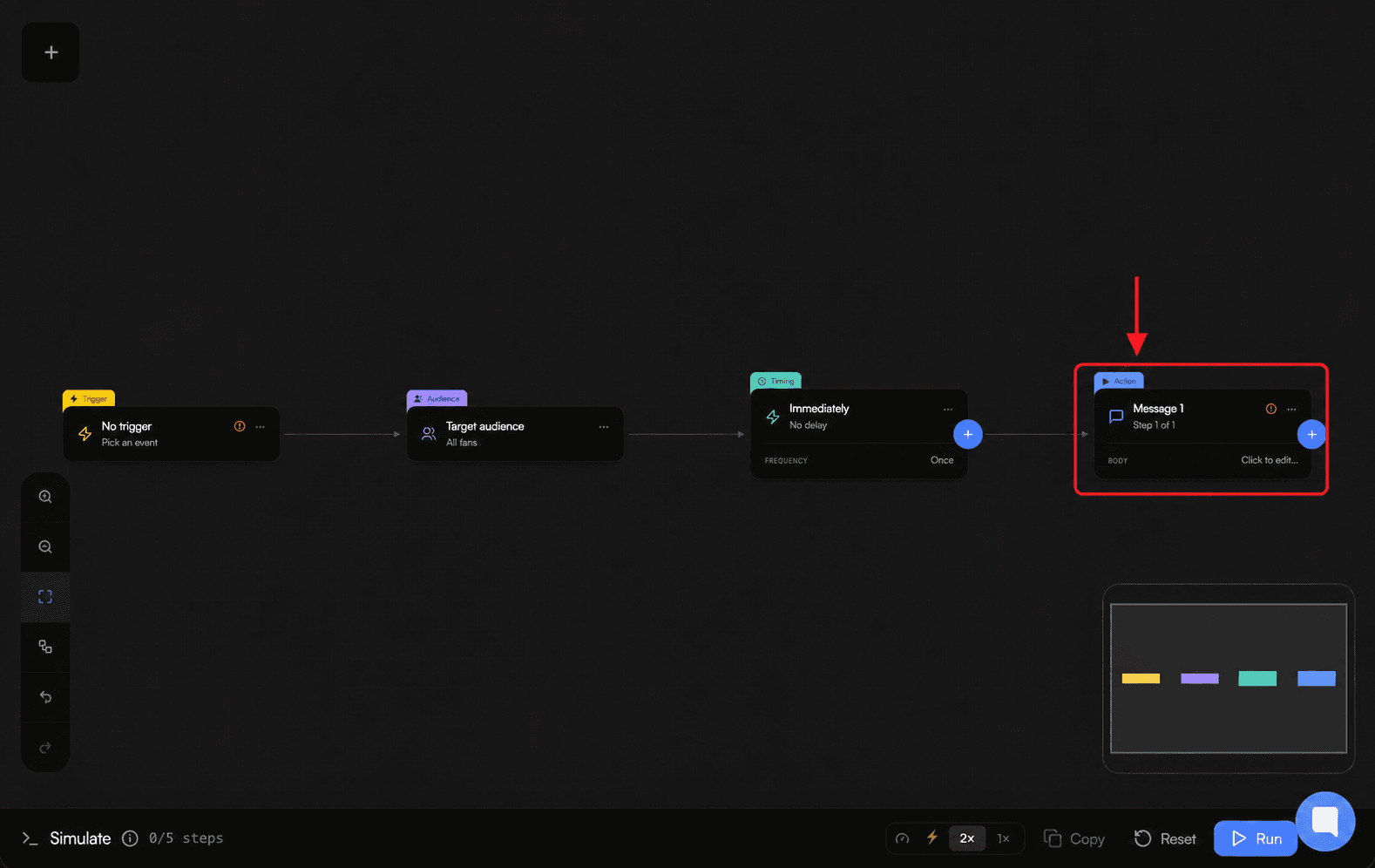
Choose Add Action, then choose Add Sequence. Add Action also offers Add Message.
-
Add the first message. You can use text, listed fan variables, media from the vault, and paid-message pricing where the selected platform supports them.
-
Add more message steps as needed. You can duplicate or remove a message, but the only message in a sequence cannot be removed.
-
For each message after the first, set Delay before sending from Instant to 1 hour in 30-second steps.
-
Turn on Stop sequence on reply when a fan reply should prevent pending sequence messages from continuing.
-
Choose Create New Automation for a new automation or Save Automation when editing.
Choose how multiple sequences run
-
Send only once permits one sequence.
-
Send every time the fan matches the trigger permits multiple sequences. For each fan, repeated runs cycle through the saved sequence order.
-
You can rename, move, or duplicate a sequence. You can delete a sequence when more than one exists.
Troubleshooting
-
Missing required fields appears: follow the on-screen hints and complete the missing message content before saving.
-
You cannot add another sequence: Send only once permits one sequence; use Send every time the fan matches the trigger when you need multiple sequences.
-
Creating or editing an automation requires automation-management access.
-
A trigger or action is unavailable: check its current plan and platform availability.