
Choose an automation audience
Use fan lists and include or exclude filters to choose who can receive an automation.
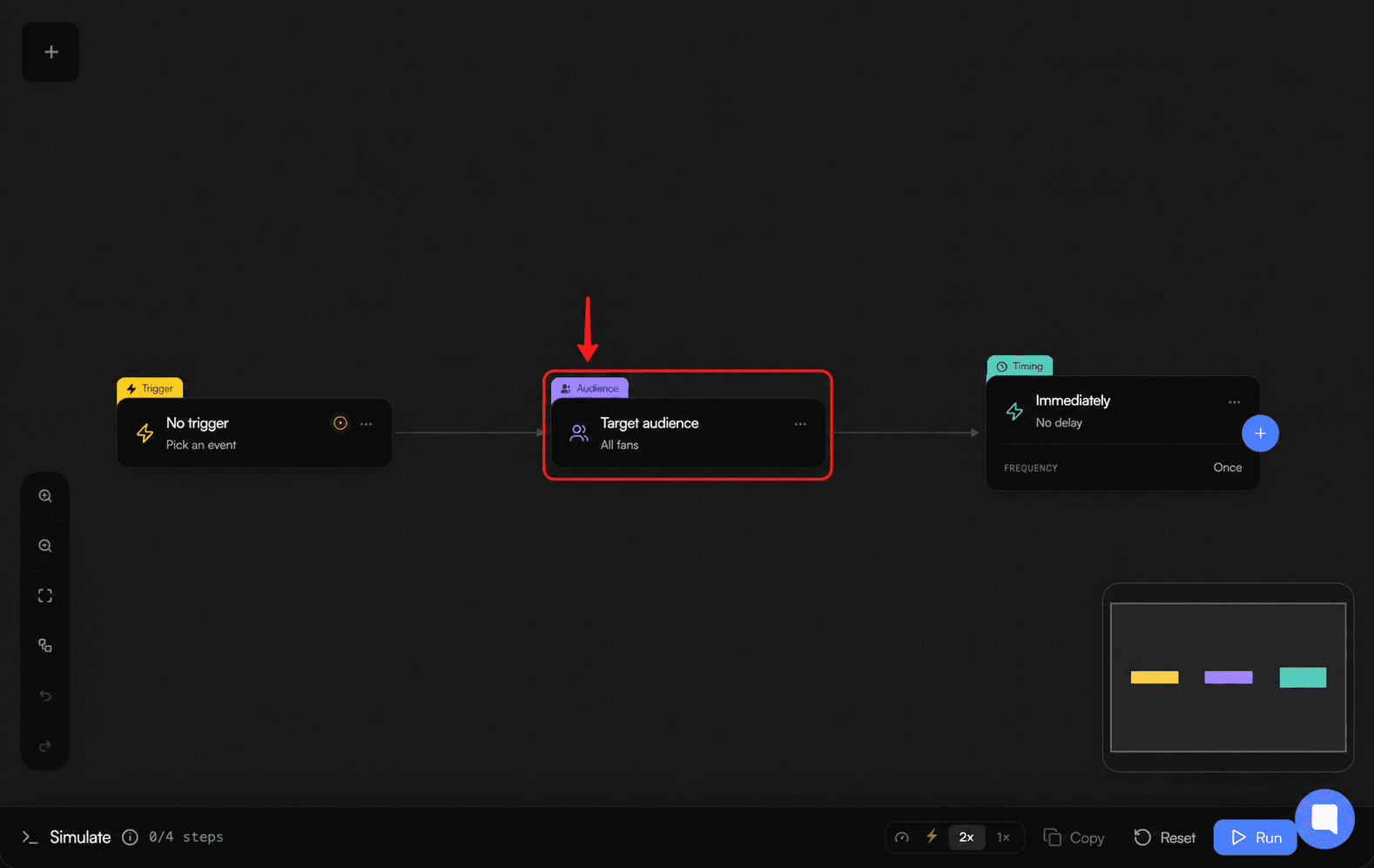
Use Target audience to narrow which fans can receive an automation. With no audience rules, the node reads All fans.
Before you start
-
Audience editing requires automation-management access.
-
Automations are supported for OnlyFans and Fanvue creators, not MYM.
-
Fan-list choices depend on the current plan and platform availability.
Choose the audience
-
Open CRM → Automations, then create or edit an automation.
-
Choose Target audience.
-
For each fan list, cycle between neutral, Include, and Exclude. Clear selection (target all fans) removes list targeting.
-
Add any needed include filters: Minimum Spend, Minimum Tips, Subscribed For, or Online Only. Every enabled include filter must pass.
-
Add any needed exclude filters, such as Recently Messaged, Viewed Media, or Creator Accounts. A fan is skipped when any enabled exclusion matches. The Unread Messages option is also shown, but it currently does not reliably reflect message read status; do not rely on it to exclude fans with unread messages.
How the rules work together
-
A fan can qualify through any included list. If the fan is also on an excluded list, the exclusion takes precedence.
-
Minimum Spend is shown as Total spent (excl. 20% fee), and Minimum Tips is shown as Total tips received.
-
Subscribed For supports days, months, or years. Recently Messaged supports days or hours. Online Only uses recent-presence information, not a guarantee that the fan is online at the instant the automation runs.
-
With no audience rules, fans who otherwise meet the trigger, timing, frequency, and availability rules are eligible.
Special cases
-
The first-subscription welcome trigger does not show Target audience.
-
Viewed Media is unavailable for the media-purchase trigger.
-
When Stop AI is selected, Minimum Spend, Minimum Tips, and Subscribed For are disabled.
Troubleshooting
-
Target audience is missing: check whether the automation uses the first-subscription welcome trigger.
-
A fan list is unavailable: check the selected creator's platform and your plan's fan-list availability.
-
Audience editing requires automation-management access.