
Handle custom requests with an automation
Create a keyword-based automation that pauses AI replies for a matched fan and can alert your team.
Use the Stop AI with Keywords template when a fan's request should be handled by a teammate. The automation can pause AI replies for the matched fan, notify linked teammates on Telegram, and add the fan to an existing list.
Before you start
-
This combination of the Fan sends a message trigger and Stop AI action requires Elite.
-
The Fan sends a message trigger is available for OnlyFans and Fanvue, and unavailable for MYM.
-
You need automation management access to create or change the automation.
Create the automation
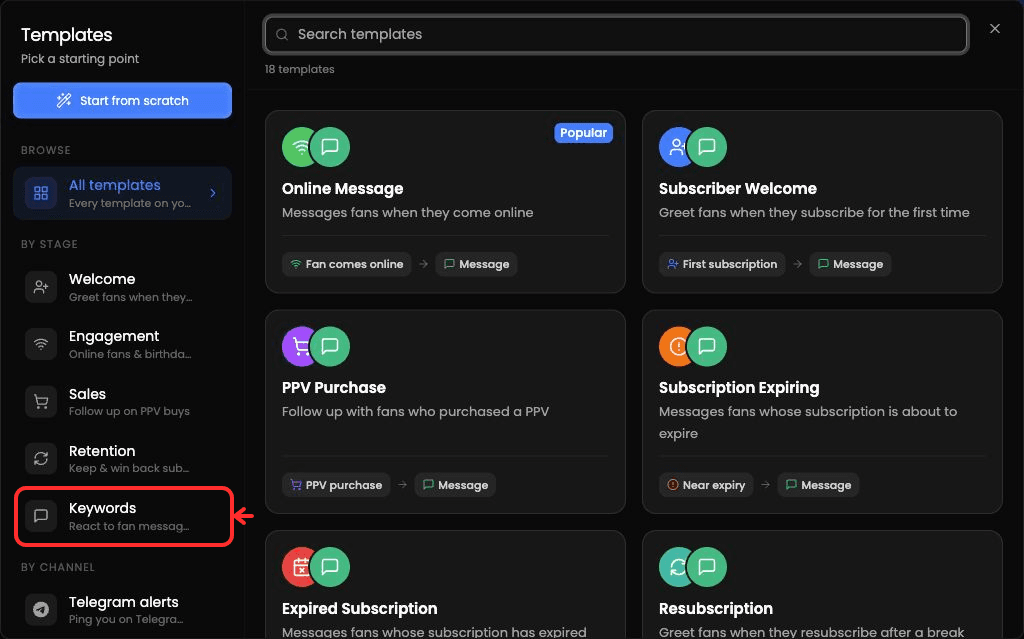
In the template browser, first select Keywords to narrow the list, then choose Stop AI with Keywords.
-
Open CRM → Automations.
-
Select Create Automation → From template, then choose Stop AI with Keywords.
-
In the Fan sends a message trigger, add the request terms you want to detect. Choose Contains or Exact match for the trigger.
-
Keep Stop AI enabled so the matched fan's AI replies are paused.
-
Optional: add Notify and select teammates with linked Telegram accounts.
-
Optional: add Add to List and select an existing fan list.
-
Review the trigger and actions, then complete the creation flow.
Choose keyword matching
Both modes ignore capitalization. Contains looks for the term at word boundaries, rather than inside a longer word. Exact match checks individual words separated by spaces; it does not compare the entire message. Punctuation attached to a word can prevent an Exact match, and multi-word phrases should use Contains.
After a request matches
-
Stop AI pauses replies for that fan. A teammate can re-enable AI later from the fan sidebar.
-
If several enabled keyword automations match the same message, one matching automation runs. Avoid overlapping request terms when you need a specific workflow.
Troubleshooting
-
No Telegram recipients: teammates marked No Telegram cannot be selected. You can link your own Telegram account in the Notify editor; each teammate must link their own account. After linking, make sure the person is selected as a recipient.
-
No list is available: create the fan list before adding the Add to List action.
-
Creation or editing is unavailable: ask a workspace owner to review your automation management access.