
Complete creator information for AI Chatter
Complete and save the creator details required before AI Chatter can be enabled.
Use Creator Information to manage the selected creator's profile details for AI Chatter. Name is enough to save the form, but enabling AI requires a few additional fields.
Access and editing
Users with AI settings access can review Creator Information. Creator management access is required to edit and save it.
Complete Creator Information
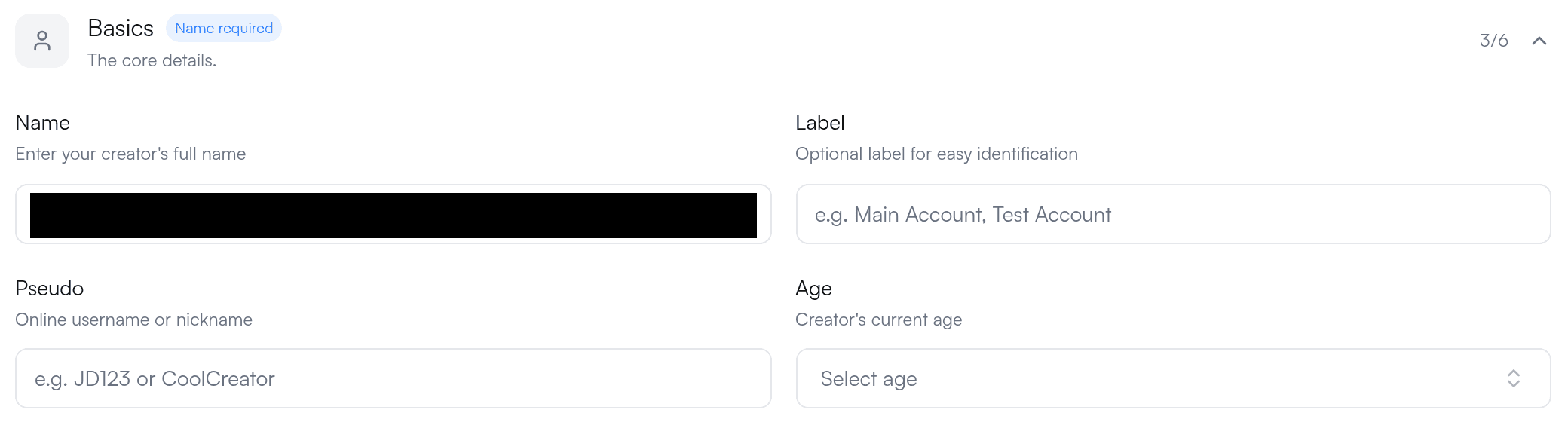
-
Open AI → Creator Info and select the creator you want to update.
-
In Basics, enter Name. This is the only field required to save the form.
-
Expand Background. Before enabling AI Chatter, also complete Place of Living, Timezone, and Native Language. Age and Birthday are not required by this AI activation check.
-
Add optional details such as background, appearance, other languages, and interests when they are useful for the creator's profile.
-
Select Save.
Choose reply languages
Set Native Language to the language AI Chatter should use by default. Add up to five additional supported reply languages under Other Languages. If a fan writes in a listed language, AI Chatter can reply in that language. If the language is not listed, AI Chatter replies in the Native Language.
Use Lives near the fan
In Background, enable Lives near the fan when AI Chatter should present the creator as living near the fan instead of using the saved Place of Living. Leave it off when AI should use the creator's saved location.
If AI Chatter still cannot be enabled
Open AI → AI Chatter. When required profile details are missing, AI Core Settings lists the missing fields and provides a Complete Profile link. Completing the profile does not resolve other activation requirements, such as account connection, available funds, or eligible content.
If the form is visible but editing is unavailable, ask a workspace owner to review your creator management access.